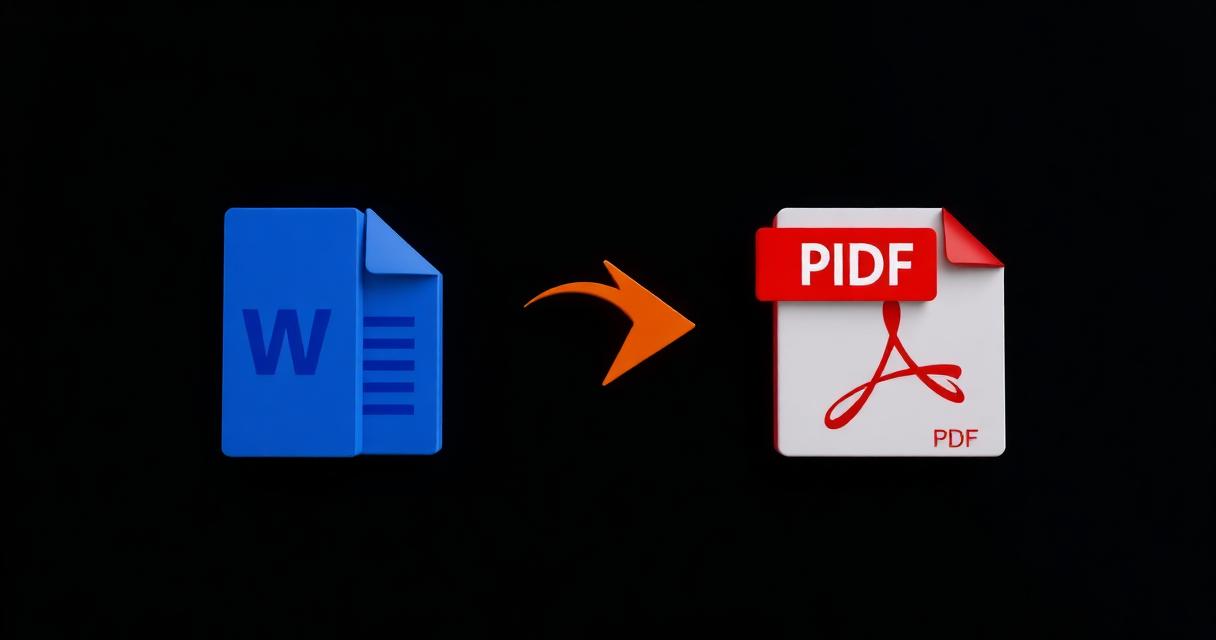
PDFは完成した文書を共有するのに最も安全な形式です。
問題の概要
Wordファイルは相手のPCにフォントがないと違って見えることがあります。
なぜ起こるのか
Wordは相手のフォントに依存しますが、PDFは必要な全てを埋め込みます。
ステップバイステップの解決策
- 1Open the document in Word and finish any last edits.
- 2Choose File > Save As (or Export) and pick PDF as the format.
- 3Select PDF quality: standard for online sharing, high for print.
- 4Confirm the file name and save.
- 5Open the resulting PDF once to verify layout, images and links.
🖼 Tutorial illustration placeholder
追加のヒント
- Embed fonts inside the DOCX to avoid substitution surprises.
- Use Print to PDF as a fallback if Save As PDF misbehaves.
- Check for hidden comments or tracked changes before exporting.
- Compress the PDF afterwards if the source contained many images.
よくある質問
Q.Do hyperlinks work?
Yes, Word preserves clickable links in the exported PDF.
Q.Can I include bookmarks?
Yes, heading styles automatically become PDF bookmarks.
Q.How to reduce PDF size after export?
Use our Compress PDF tutorial.
Q.Does the PDF stay editable?
Not without a PDF editor. Keep the DOCX for future edits.
まとめ
WordからPDFへの書き出しは書式トラブルを即座に解決します。
