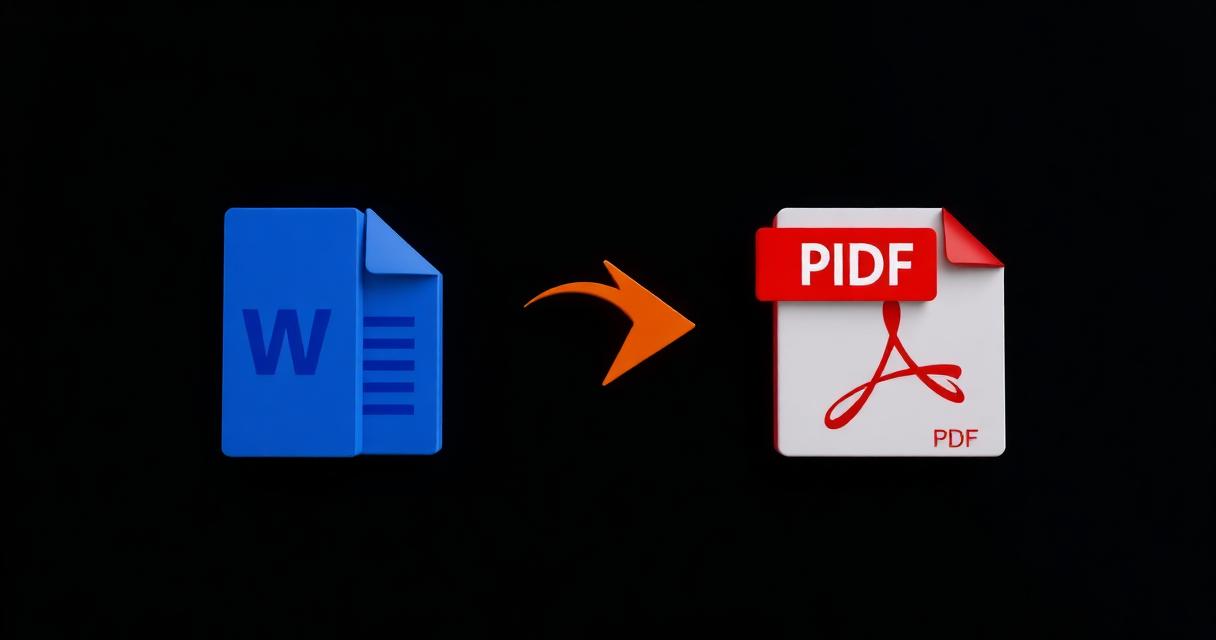
PDF는 완성된 문서를 공유하기에 가장 안전한 형식입니다.
문제 개요
Word 파일은 다른 컴퓨터에서 폰트가 없으면 다르게 보일 수 있습니다.
왜 발생하는가
Word는 사용자의 설치된 폰트에 의존하지만 PDF는 필요한 모든 것을 포함합니다.
단계별 해결 방법
- 1Open the document in Word and finish any last edits.
- 2Choose File > Save As (or Export) and pick PDF as the format.
- 3Select PDF quality: standard for online sharing, high for print.
- 4Confirm the file name and save.
- 5Open the resulting PDF once to verify layout, images and links.
🖼 Tutorial illustration placeholder
추가 팁
- Embed fonts inside the DOCX to avoid substitution surprises.
- Use Print to PDF as a fallback if Save As PDF misbehaves.
- Check for hidden comments or tracked changes before exporting.
- Compress the PDF afterwards if the source contained many images.
자주 묻는 질문
Q.Do hyperlinks work?
Yes, Word preserves clickable links in the exported PDF.
Q.Can I include bookmarks?
Yes, heading styles automatically become PDF bookmarks.
Q.How to reduce PDF size after export?
Use our Compress PDF tutorial.
Q.Does the PDF stay editable?
Not without a PDF editor. Keep the DOCX for future edits.
결론
Word를 PDF로 내보내는 것은 서식 문제를 즉시 해결합니다.
