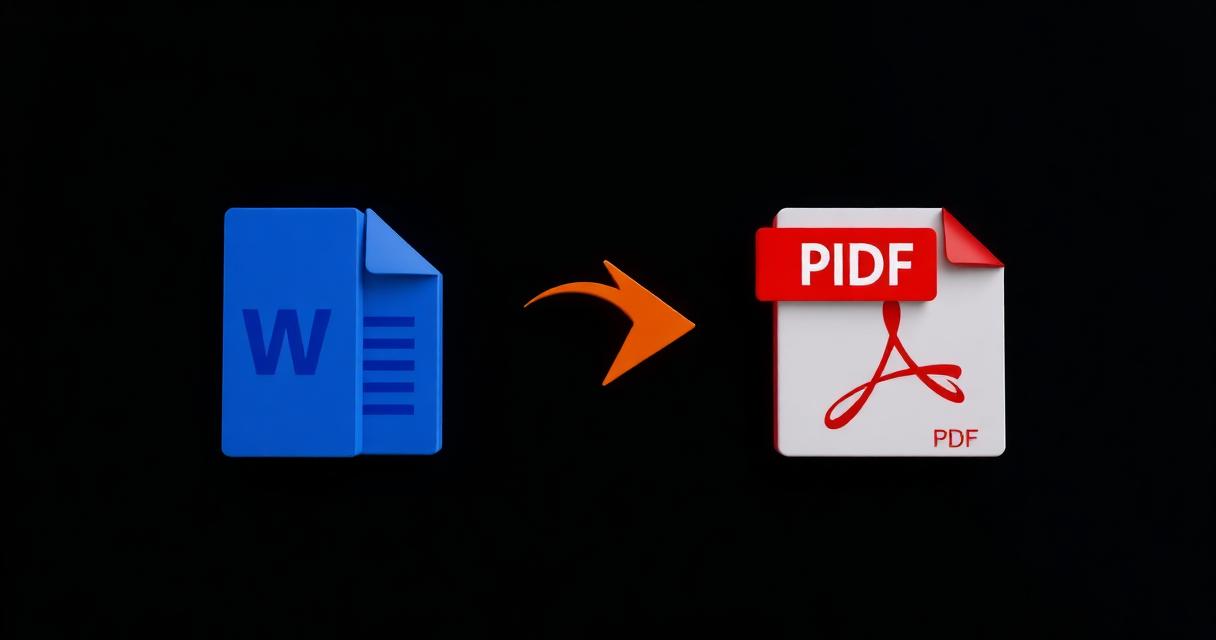
PDF é o formato mais seguro para compartilhar documentos finalizados.
Índice
Visão Geral do Problema
Um arquivo Word pode ficar diferente em outro computador sem a fonte certa.
Por Que Acontece
Word depende das fontes instaladas. PDF incorpora tudo o que a página precisa.
Solução Passo a Passo
- 1Open the document in Word and finish any last edits.
- 2Choose File > Save As (or Export) and pick PDF as the format.
- 3Select PDF quality: standard for online sharing, high for print.
- 4Confirm the file name and save.
- 5Open the resulting PDF once to verify layout, images and links.
🖼 Tutorial illustration placeholder
Dicas Adicionais
- Embed fonts inside the DOCX to avoid substitution surprises.
- Use Print to PDF as a fallback if Save As PDF misbehaves.
- Check for hidden comments or tracked changes before exporting.
- Compress the PDF afterwards if the source contained many images.
Perguntas Frequentes
Q.Do hyperlinks work?
Yes, Word preserves clickable links in the exported PDF.
Q.Can I include bookmarks?
Yes, heading styles automatically become PDF bookmarks.
Q.How to reduce PDF size after export?
Use our Compress PDF tutorial.
Q.Does the PDF stay editable?
Not without a PDF editor. Keep the DOCX for future edits.
Conclusão
Exportar de Word para PDF resolve dores de cabeça de formatação.
