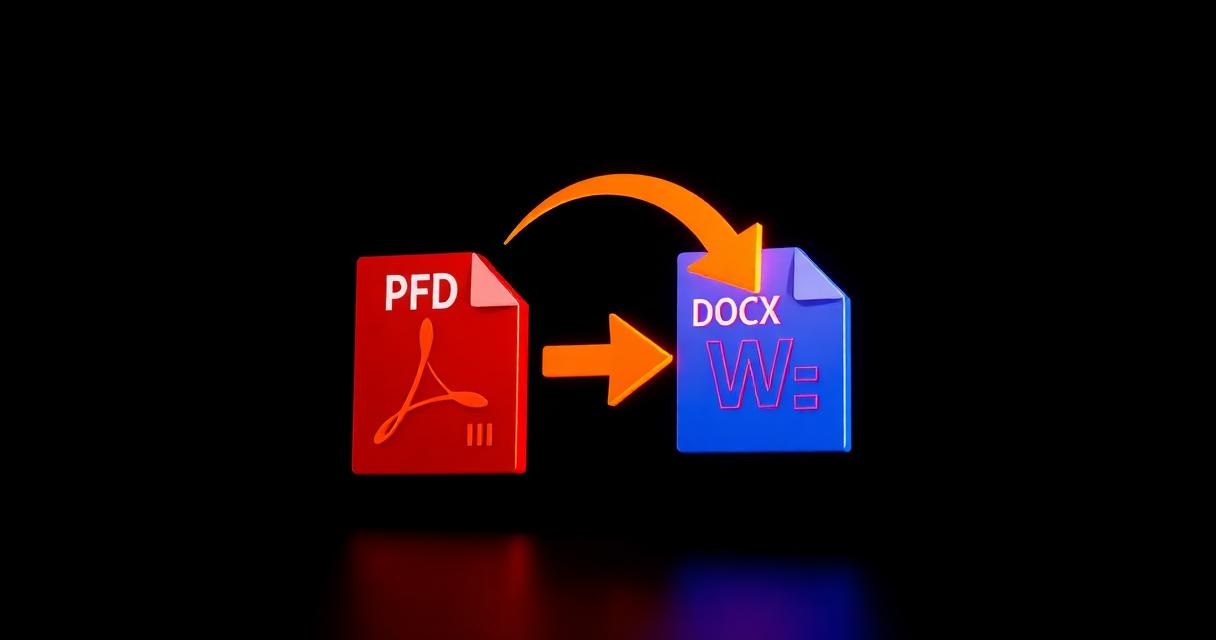
Editar PDF directamente es limitado; convertir a Word permite trabajar en un editor familiar.
Tabla de Contenido
Descripción del Problema
Recibes un PDF que hay que editar, pero pegar en Word rompe el formato.
Por Qué Ocurre
Los PDFs usan posiciones absolutas; Word usa párrafos fluidos. El conversor reconstruye la estructura.
Solución Paso a Paso
- 1Open a reliable PDF-to-Word converter.
- 2Upload the PDF (or drag it in).
- 3Choose DOCX as the output format.
- 4Wait for conversion, then download the Word file.
- 5Open the file and fix any minor layout issues, especially inside tables.
🖼 Tutorial illustration placeholder
Consejos Adicionales
- Text-based PDFs convert almost perfectly; scans need OCR first.
- For long documents, convert a sample page first to check quality.
- Keep the original PDF as a reference while you edit the DOCX.
- Do not expect complex multi-column layouts to convert one-to-one.
Preguntas Frecuentes
Q.Will fonts stay the same?
Yes, if the original fonts are installed on your system.
Q.Can I convert scanned PDFs?
Only with an OCR-enabled converter that recognizes the scanned text first.
Q.Are images preserved?
Yes, and most tools keep them anchored close to their original position.
Q.Is there a size limit?
Free tools usually cap around 50–100 MB per file.
Conclusión
Convertir PDF a Word ahorra horas cuando necesitas reutilizar contenido.
