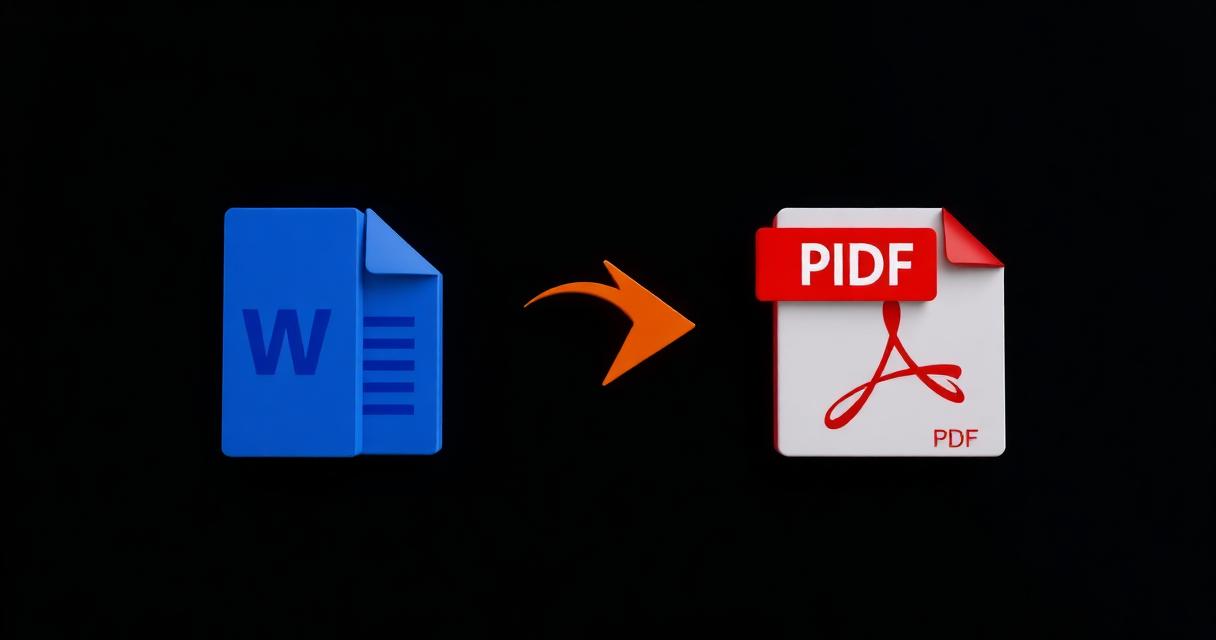
PDF es el formato más seguro para compartir documentos terminados.
Tabla de Contenido
Descripción del Problema
Un archivo Word puede verse distinto en otra computadora si faltan fuentes.
Por Qué Ocurre
Word depende de las fuentes instaladas; PDF incrusta todo lo necesario.
Solución Paso a Paso
- 1Open the document in Word and finish any last edits.
- 2Choose File > Save As (or Export) and pick PDF as the format.
- 3Select PDF quality: standard for online sharing, high for print.
- 4Confirm the file name and save.
- 5Open the resulting PDF once to verify layout, images and links.
🖼 Tutorial illustration placeholder
Consejos Adicionales
- Embed fonts inside the DOCX to avoid substitution surprises.
- Use Print to PDF as a fallback if Save As PDF misbehaves.
- Check for hidden comments or tracked changes before exporting.
- Compress the PDF afterwards if the source contained many images.
Preguntas Frecuentes
Q.Do hyperlinks work?
Yes, Word preserves clickable links in the exported PDF.
Q.Can I include bookmarks?
Yes, heading styles automatically become PDF bookmarks.
Q.How to reduce PDF size after export?
Use our Compress PDF tutorial.
Q.Does the PDF stay editable?
Not without a PDF editor. Keep the DOCX for future edits.
Conclusión
Exportar de Word a PDF evita dolores de cabeza de formato.
